Quick Microsoft 365 and Windows video tips.
Short, practical how-to videos for Outlook, Microsoft Teams, OneDrive and Windows 11, made for businesses and their teams. New Shorts every Monday, Wednesday and Friday, and a deeper how-to every Wednesday. Videos open on our YouTube channel.
Outlook tips
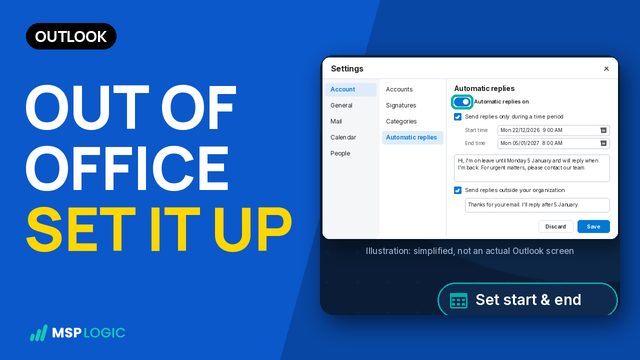 1:22
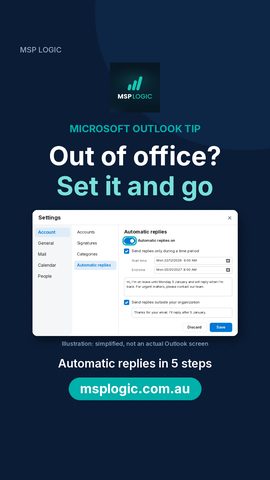
Outlook out of office: set up automatic replies
Turn on automatic replies in new Outlook, Outlook on the web or classic Outlook, add your message and set dates so the replies switch off by themselves.
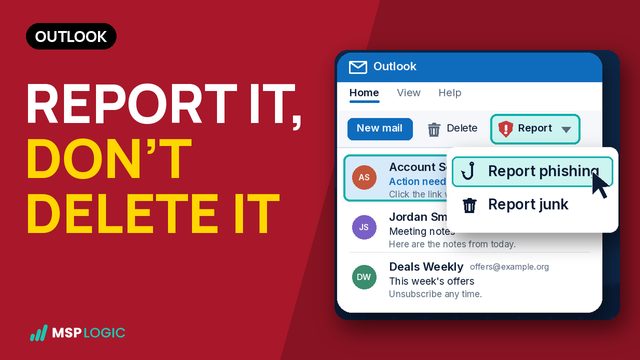 1:29
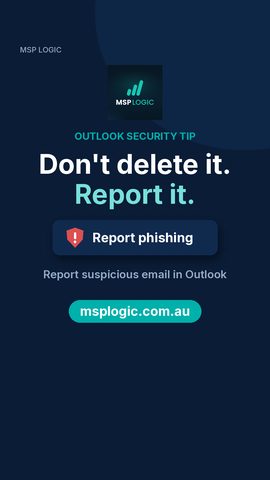
How to report phishing emails in Outlook
Don't just delete a suspicious email. Use Outlook's built-in Report button so the message reaches Microsoft and your organisation.
 1:11
Outlook on the web: how to turn on Undo send
Give yourself a few seconds to cancel an email after you select Send. It's a short delay, not a recall.
Microsoft Teams tips
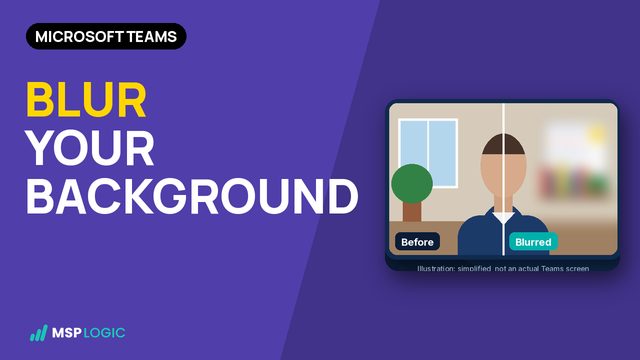 1:29
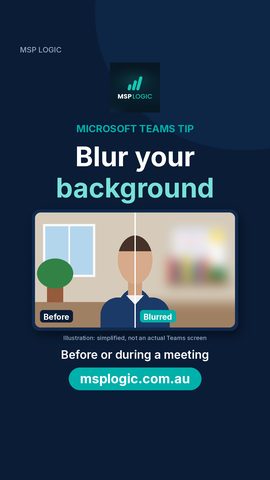
Microsoft Teams: blur or change your background
Blur the room behind you or pick a background in Teams, before you join a meeting or while you're in one.
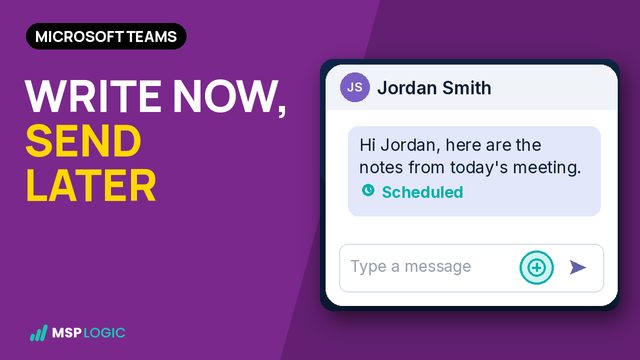 1:21
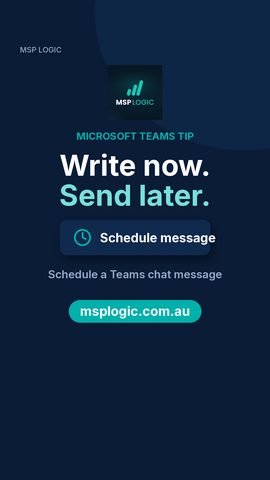
Microsoft Teams: schedule a chat message to send later
Write a Teams chat message now and have it sent automatically at the time you choose, then edit or cancel it before it goes.
OneDrive tips
 1:28
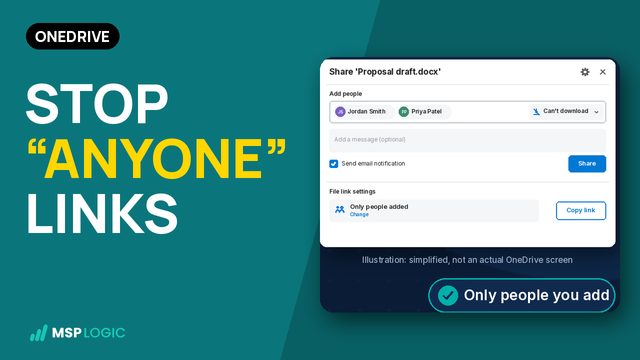
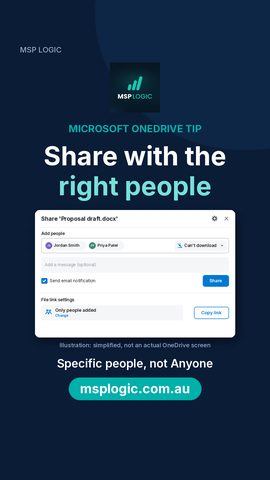
OneDrive: share a file with specific people only
Share a work file with only the people who need it instead of an Anyone link, choose what they can do, and stop sharing when you're done.
 1:24
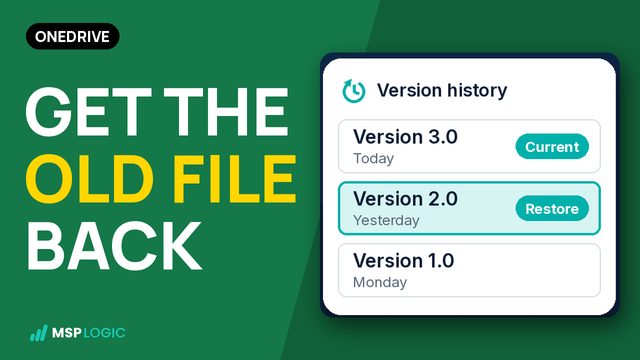
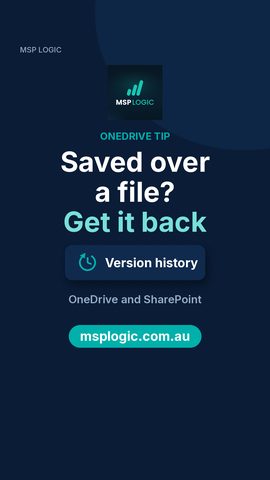
OneDrive version history: restore an earlier version
Saved over a file? Use version history in OneDrive or SharePoint to see earlier versions and restore the one you need.
Windows tips
 1:28
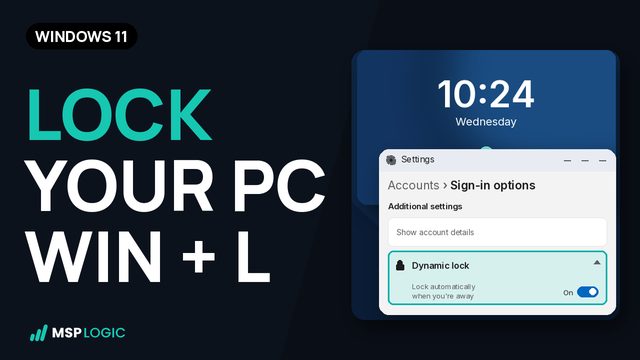
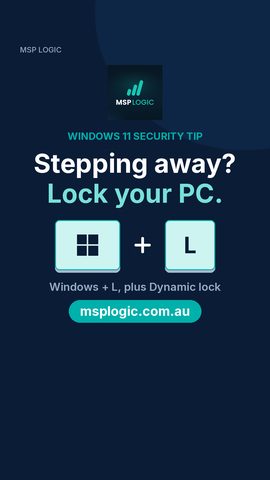
Lock your Windows 11 PC: Windows + L and Dynamic lock
Lock your PC in a second with Windows + L, and set up Dynamic lock so Windows locks itself when your phone leaves with you.
 1:23
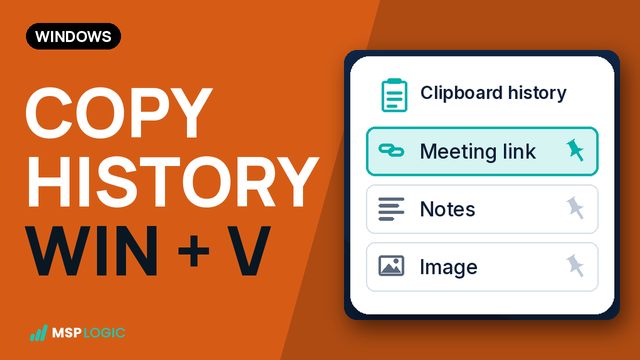
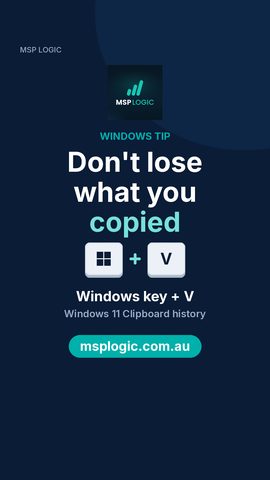
Clipboard history in Windows 11 (Windows + V)
Turn on clipboard history with Windows + V so you can paste something you copied earlier, and pin the items you reuse.
Shorts under 90 seconds
Never miss a tip.
Subscribe on YouTube for new Shorts three times a week and a deeper how-to every Wednesday. Got a question you'd like answered in a video? Email us.
Rather we just set it up for you?
We set up and look after Microsoft 365, Teams, OneDrive and Windows for businesses, so your team can just get on with work.